Fix Black Bar Images With Canva Free
Removing Black Bars
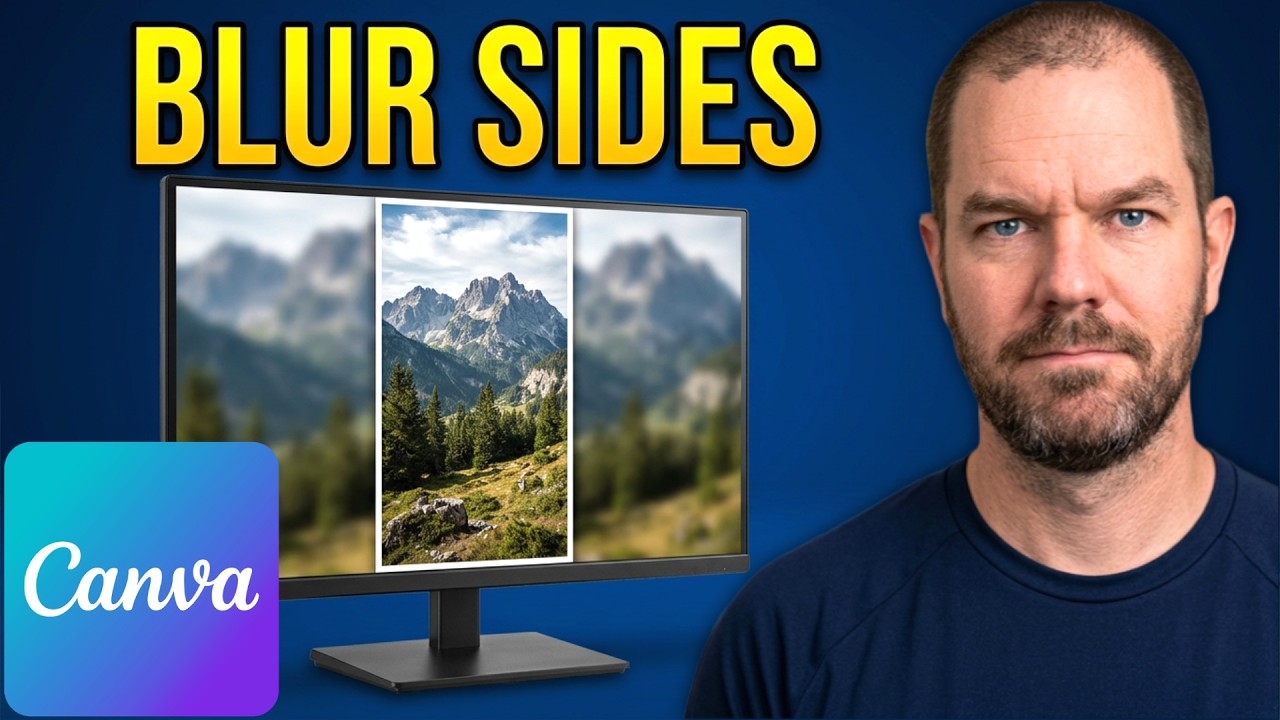
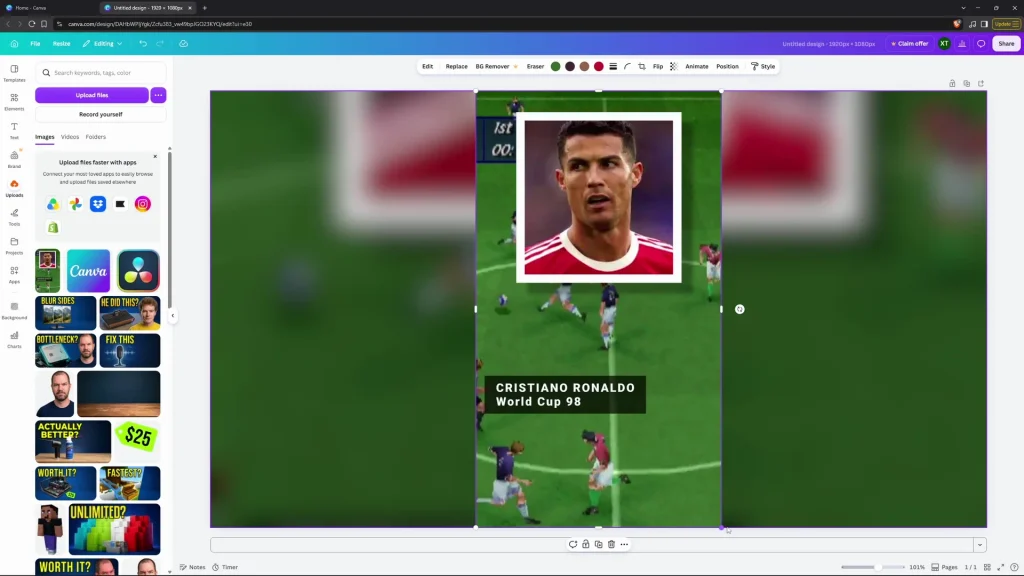
This is how I format my vertical assets, like YouTube Shorts, into horizontal content to use on my website. We’re going to take a vertical image from a video, convert it into a horizontal image, then fill the empty side space using a blurred copy of the exact same video. This technique is called applying a “Blanking Fill” or “Blur Pillarbox” to an image. It’s also less commonly known as “Echo Pillarbox”.
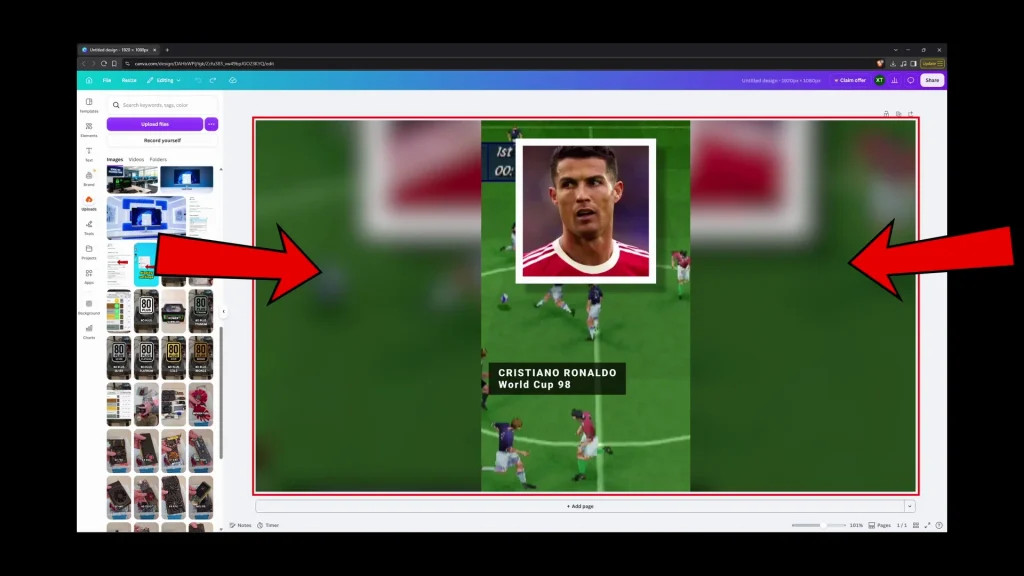
We’re doing this with Canva Free and VLC Media Player, which is also free. It only takes a couple of minutes to do.
Taking the Screenshot
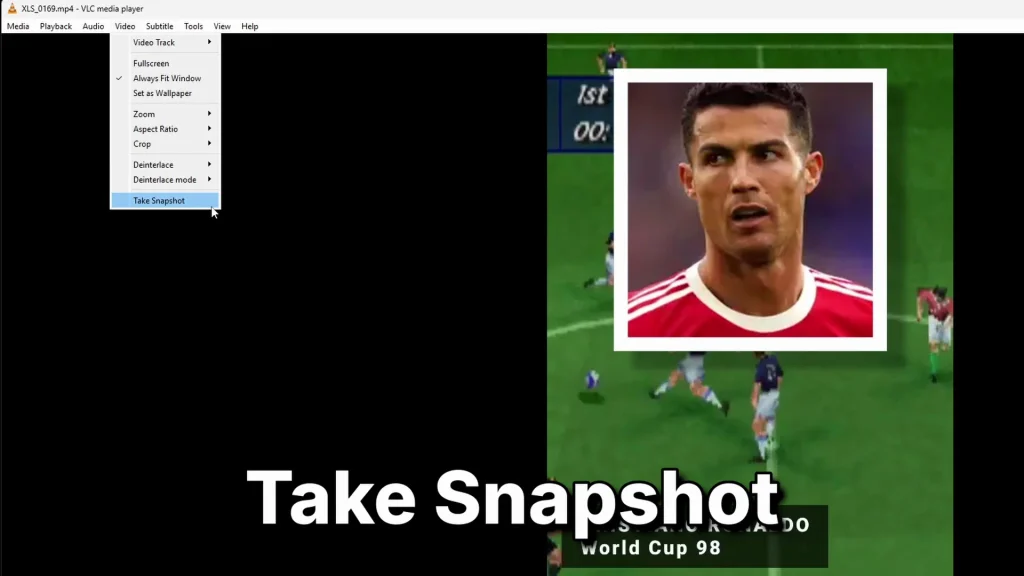
First, open your vertical video with VLC media player. Pause playback on the exact frame you want to use for your final image. Now at the top select Video > “Take Snapshot” and take note of where VLC saves the snapshot. If your vertical content is already just a plain image, then you can skip this step entirely.
Create Canva Design
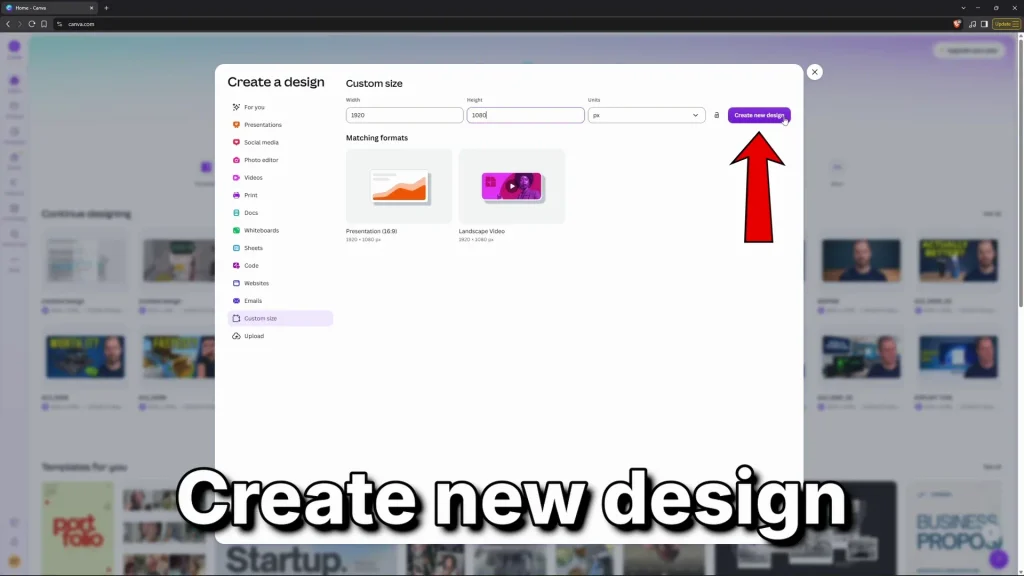
Now log into your Canva Free account and create the design. To do this, from the homepage select “Custom Size”. Choose a width of 1920 and a height of 1080 and click “Create new design”.
Place Background Image
Switch to the Uploads menu and upload the vertical snapshot you saved earlier. Click on the uploaded image to display it in the center of the canvas.
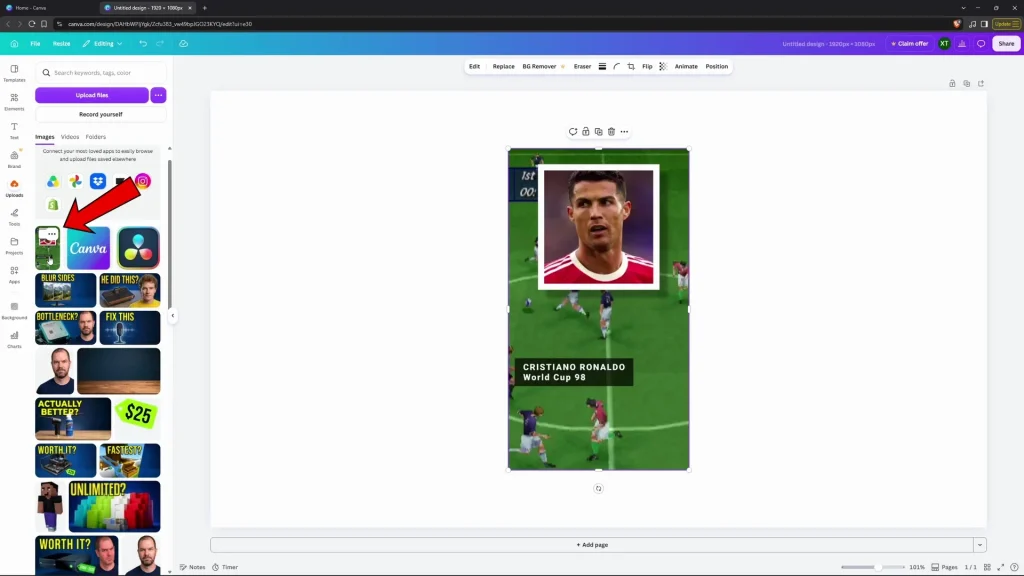
Drag the top and bottom edges of the image to the top and bottom of the canvas to fill the canvas vertically.
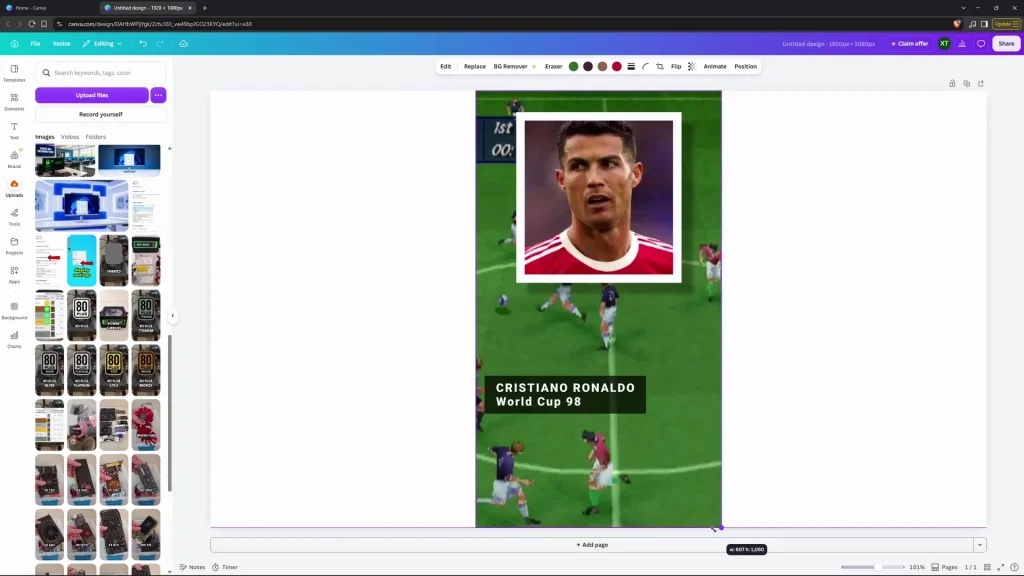
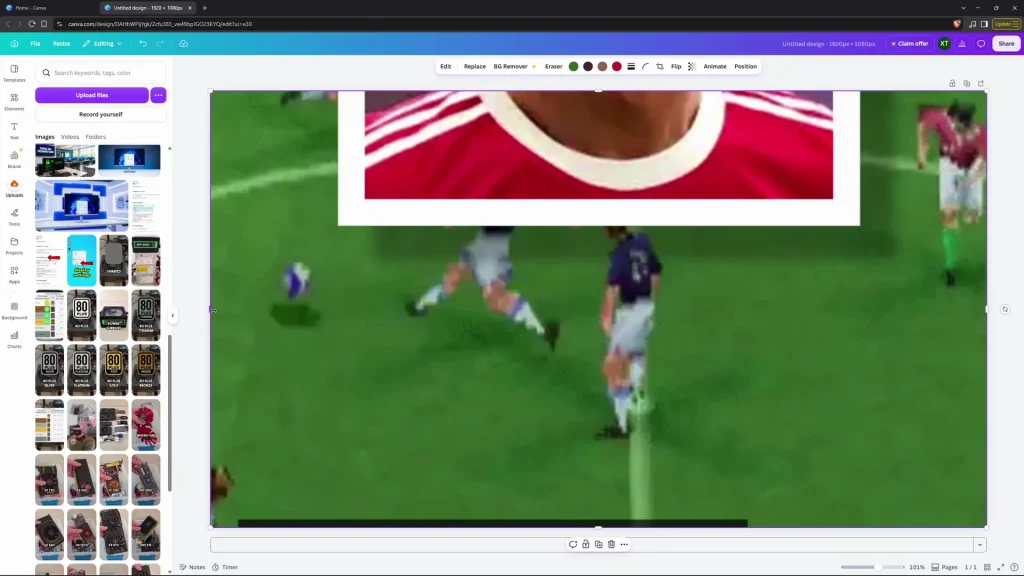
Now drag out the sides of the image in the same way to fill the entire canvas with the image.
Blur and Darken Background
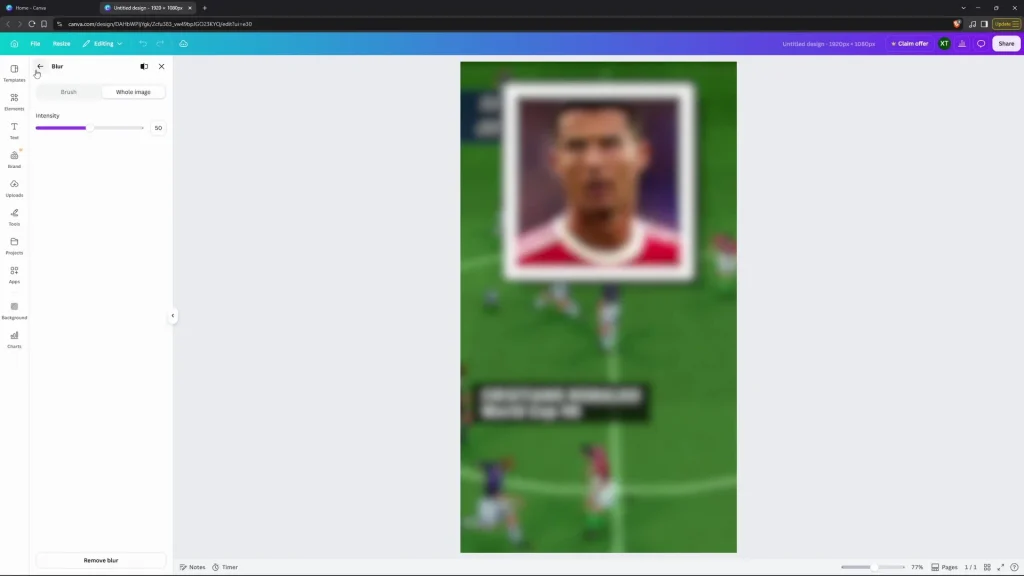
Now select your background image and click “Edit”. Open up the available tools and select the Blur Tool. Select the “Whole Image” setting and move the intensity to 50 or whatever value you like.
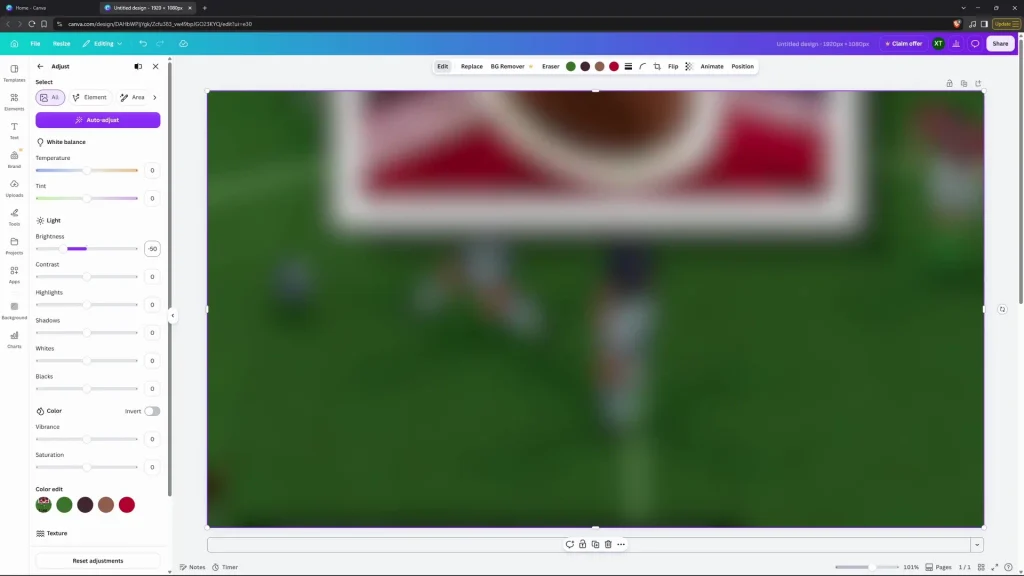
Now hit the back arrow and select “Adjust”. Move the brightness to negative 50 or a value that looks good to you.
Add Foreground Image
Now go back to the Uploads menu. Click on your uploaded vertical image again to copy it onto the center of the canvas as a new layer.
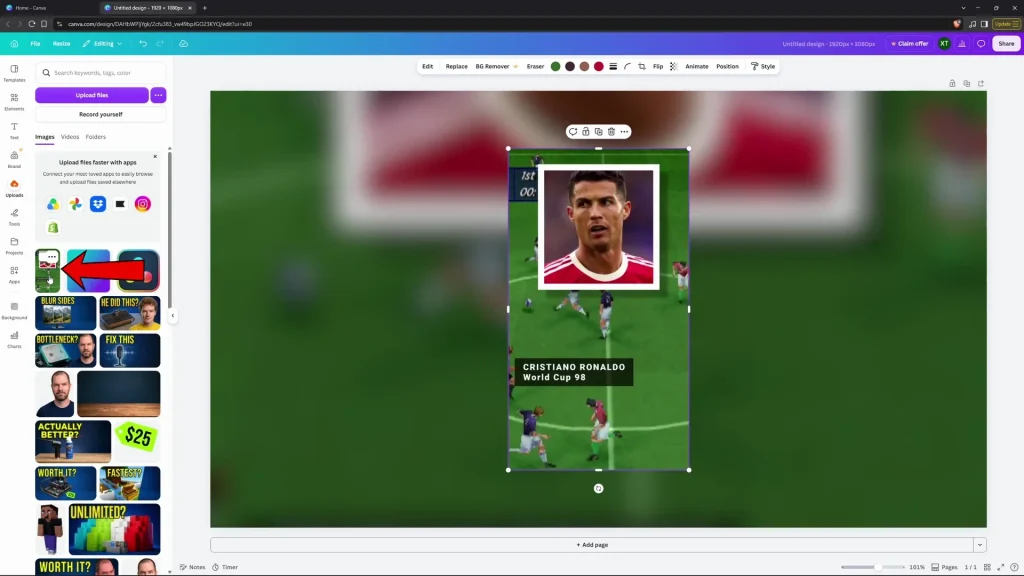
Click and drag the upper left anchor point of the image to the top of the canvas. Now do the same for the bottom right anchor point. The full vertical image should now be displayed on top of the stretched and blurred background copy.
Export Final Blurred Image
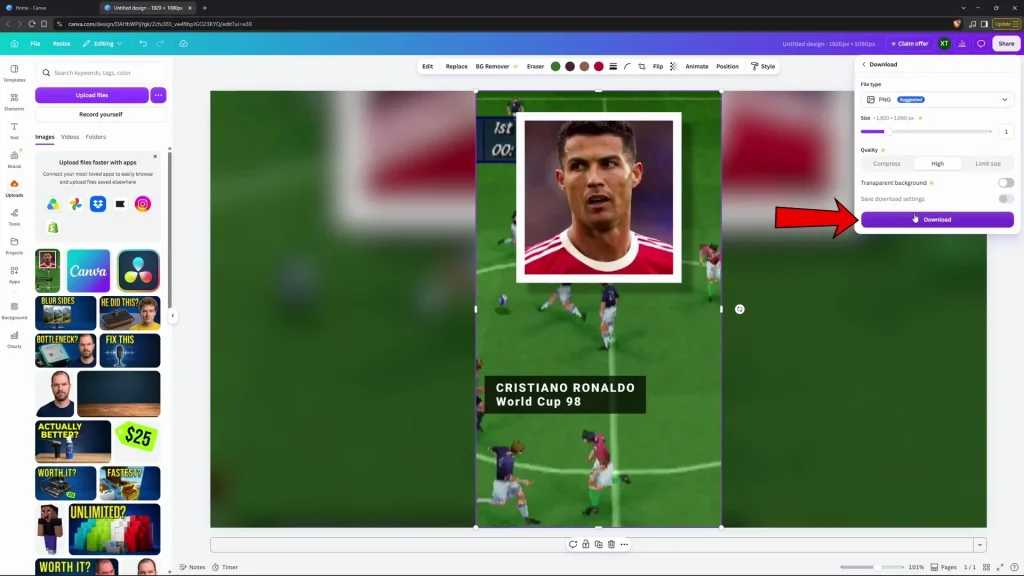
To export your new blurred image, first click “Share” in the upper-right. Now click the “download” button. Select the file type you would like to export as. Click “download” again to save the file to your computer. That’s all there is to it.
See how to do this same process in DaVinci Resolve: Fix Black Bar Images With DaVinci Resolve
Pro Tip: If you’re looking to build out your website or secure a custom domain for your project, Hostinger currently has up to 75% off plans with a free domain and website builder included.
Explore Hostinger →