Best GT 730 Overclocking Settings Guide
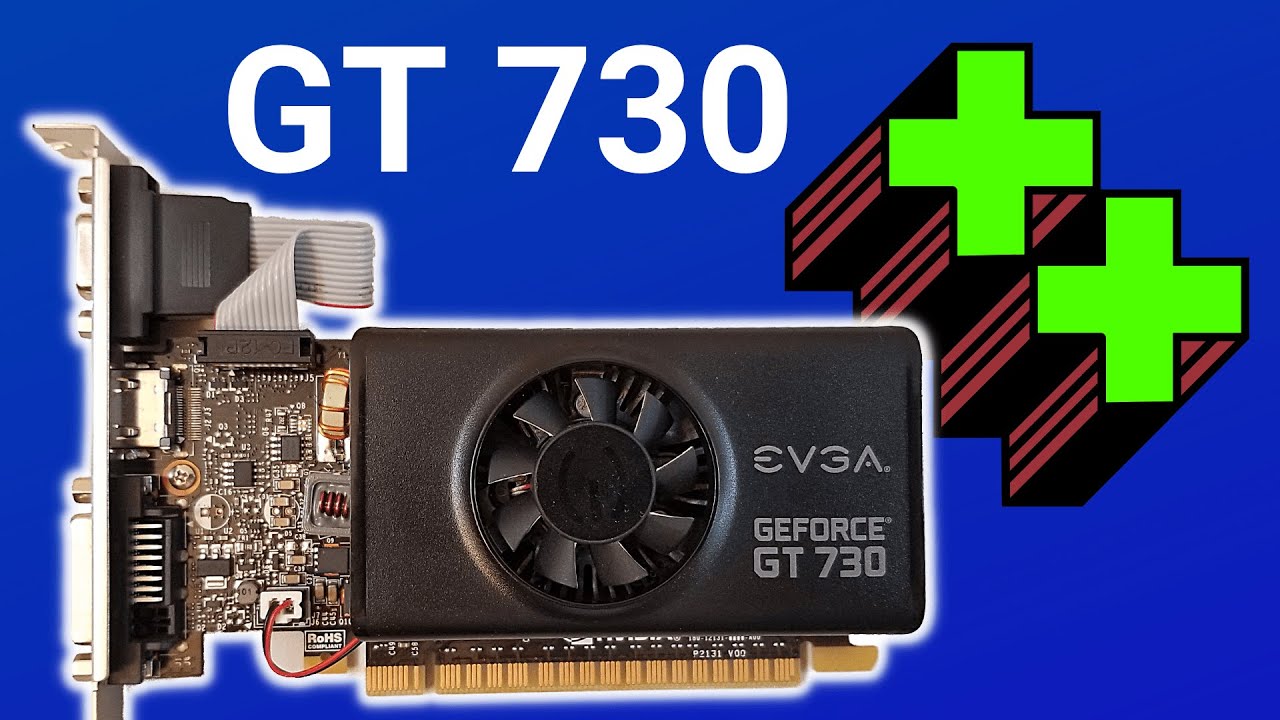
Trying to squeeze more performance out of an aging GT 730? This guide walks through the exact overclocking steps, tools, and benchmark tests that can actually make a noticeable difference. The GT 730 may be an old budget card, but with the right tuning it can deliver some crazy gains in real‑world games and benchmarks:
So you want to overclock a GT 730 graphics card. If so, you’ve come to the right place.
The Nvidia GeForce GT 730, now just to get it out there, this card is old, and even when it was new it wasn’t super powerful. However, this card is also known to be an excellent overclocker, and using some simple overclocking tweaks, let’s see how much more powerful we can make this little scrapper of a card.
The GT 730 was originally introduced in mid 2014. It has variants based on both the 40‑nanometer and 28‑nanometer chip process. It supports DirectX 12, but only with feature level 11.
Different versions of this card actually use one of two different GPUs. The first is the GF108 chip with Fermi architecture and 96 CUDA cores. The second is the GK208 chip with Kepler architecture and 384 cores. Definitely pay attention to which chip your card is using.
The GT 730 can come with either active or passive cooling solutions. The card comes with anywhere between one and four gigabytes of memory, and the memory type can be DDR3, DDR4 or GDDR5. The examples I have here are both Kepler‑based cards: the Zotac GeForce GT 730 1GB DDR5 and the EVGA GeForce GT 730 2GB low profile. We’re going to be using the EVGA card for overclock testing; however, the steps to overclock are going to be the same no matter what model of card you have.
The first thing we’re going to want to do is update the drivers. Let’s jump over to Nvidia and grab the latest ones.
Now that our drivers are freshly updated, the next step is to install an overclocking program called MSI Afterburner. MSI Afterburner is a completely free tool that gives you a high level of control and monitoring over your graphics card. It’s made by the company MSI, but you do not have to use it with an MSI brand card or anything like that. MSI Afterburner works with both AMD and Nvidia graphics cards. There is no registration or membership required, so it’s highly recommended.
Now that MSI Afterburner is installed, we’ll be focusing on the core clock and memory clock settings. We can see that the fan speed is currently set to Auto. You can turn this off and manually select a fan speed that you like; however, for this video we’re going to leave it on Auto.
For voltage, you can see that the setting is grayed out by default. This setting is disabled by MSI Afterburner; however, this card does not officially support changing the voltage anyway, so turning it on won’t do anything. Just to note, it is actually possible to change the voltage on this card using some other methods, but we’re not going to be covering that in this video.
Once you’ve made changes to the core clock and memory clock, you can reset them back to the default by clicking on the reverse arrow at the bottom. Once you’re satisfied with your changes, you can click on the check button to apply them. You can save your current settings to a profile by clicking on the Save button, then clicking on one of the profiles along the right‑hand side. Finally, you can have the current settings automatically apply at Windows startup by clicking the Windows icon in the upper right corner.
Now I’m going to put a list of known successful GT 730 overclocks on the screen as well as down in the video description. Every card is different, but this should give you a good jumping‑off point for possible overclock values that may work for you.
Now that we’ve locked in our overclock settings, we’re going to want to test them. We’re going to run through three different benchmark programs to test our overclock: 3DMark Demo, Resident Evil 6 Benchmark Tool, and Shadow of the Tomb Raider Trial. All these programs are free and they’re all available on Steam.
What I’ll do is run through all three benchmarks with stock settings, then select a moderate initial increase in both core clock and memory clock settings. I’ll then run the 3DMark Demo just to be sure it can make it through the test without crashing. Running 3DMark Demo will also generate some performance ratings to see how much things may have improved from the overclocks. I’ll then increase the overclock value slightly and run the test again.
Once the settings have been pushed too far and I start seeing graphical glitches or crashing or things just don’t seem to be working properly, I’ll reverse the settings back to what they were just previously when everything was still working solid. At that point, I now have a good idea of where the sweet spot is for overclocking my particular card. I can either stick with those settings or try tweaking things just a little bit further.
This card was able to overclock to an impressive +260 MHz core clock and +200 MHz memory clock. This takes our base 3DMark graphics score from 384 up to 476, an increase of 24 percent.
Let’s see how our new and improved card does with the other benchmarks. For Resident Evil 6 at 720p and settings on High, an initial score of 4256 and Rank B after overclocking came in at 5043, Rank A. This is an 18 percent improvement. This improvement was noticeable and takes what would have been, in my opinion, a subpar experience and turns it into something far more playable.
For Shadow of the Tomb Raider at 720p and graphical settings on the Low preset, an initial score of 2460 frames and an average FPS of 14 was replaced by an overclock score of 2791 frames and an average FPS of 18. This is an FPS improvement of 28 percent, though at 18 FPS it’s still too low to be playable at 720p.
Just to see what would happen, I reduced the Low graphics settings down to the Lowest preset and ran the overclock test again. This time it managed 3389 frames and an average FPS of 22. A nice increase, however if you want to play Shadow of the Tomb Raider on a GT 730, it looks like you’re going to have to play it in low res.
All in all, this little card is a very impressive overclocker.
Now my question to you is: have you ever owned a GT 730? If so, what settings were you able to overclock it to? Please feel free to leave a comment in the video, and thank you so much for watching!
MSI Afterburner download page: